Desktop Computers Computer
A practical step-by-step guide to desktop computers computer, including preparation, instructions, common issues, tips, and next steps.
Desktop Computers Computer
Choosing a new desktop computer can feel overwhelming, with a landscape of confusing acronyms and technical specifications. This guide demystifies the process, breaking it down into simple, actionable steps. We will help you move beyond the jargon to identify exactly what you need, ensuring you invest in a machine that perfectly complements your lifestyle, whether for creative pursuits, demanding work, immersive gaming, or everyday family use. Consider this your definitive roadmap to making a confident and informed purchase.
Fast Answer
- Primary Focus: Define your main tasks first (e.g., work, gaming, browsing).
- Core Trio: Balance the processor (CPU), memory (RAM), and storage for your needs.
- Don't Forget: Budget separately for a quality monitor, keyboard, and mouse.
Before You Start Your Search
A little preparation goes a long way. Before you dive into browsing models, taking a few moments to outline your requirements will make the entire process smoother and more successful. This isn't about becoming a tech expert; it's about understanding your own needs to guide your search.
What You Need
- A clear understanding of your primary use. Make a short list: will this be for browsing and emails, editing family photos, completing a university degree, or playing the latest blockbuster games? Be specific.
- A firm budget for the entire setup. This includes the computer tower itself, plus any necessary peripherals like a monitor, keyboard, mouse, webcam, or speakers.
- Physical measurements of your intended space. Know the height, width, and depth available on or under your desk to ensure your chosen computer will fit comfortably.
- A list of software you use daily. Note down any demanding applications, such as Adobe Photoshop, video editing software, or specific games, as these will heavily influence your component choices.
How to Choose the Right Desktop Computer
Define Your Primary Use Case
The single most important step is to identify what you will be doing with your computer 90% of the time. A machine built for a professional video editor is overkill for someone who just needs to browse the web. Be honest about your needs to ensure you get the best value.
We can group most uses into four broad categories:
- Everyday Use: This covers web browsing, sending emails, streaming video (Netflix, YouTube), managing personal finances, and using social media. These tasks are not demanding, so you can focus on value and reliability.
- Home Office & Student: This involves everything from everyday use plus word processing, spreadsheets, frequent video calls, and heavy multitasking with many browser tabs and applications open at once. A responsive system is key.
- Creative Professional: This is for users working with photography, graphic design, video editing, music production, or 3D modelling. These tasks require significant processing power, a lot of memory, and a powerful graphics card.
- Gaming Enthusiast: Gaming requires a strong focus on the graphics card (GPU) and a capable processor (CPU) to deliver smooth, high-resolution visuals. Memory speed and cooling also become important factors.
Set a Realistic Budget
With your use case defined, you can now set a sensible budget. Desktop computer prices can range from a few hundred to many thousands of pounds. Knowing your spending limit from the outset prevents you from overspending on features you don't need.
- Entry-Level (under £800): Perfect for everyday use and light student work. Expect a solid experience for browsing, streaming, and office applications.
- Mid-Range (£800 - £1,500): This is the sweet spot for most people, including home office users, students, and entry-level gamers or creatives. These PCs offer excellent performance for multitasking and can handle more demanding tasks without issue.
- High-End (£1,500+): Aimed at serious gamers, creative professionals, and users who demand top-tier performance. These machines feature premium components for intensive tasks like 4K video editing, 3D rendering, and high-fidelity gaming.
Choose the Right Form Factor
A "desktop computer" isn't just one shape or size. The physical case, or form factor, determines its footprint, internal space, and aesthetic. Consider where the computer will live in your home.
- Tower PCs: The traditional choice. They come in various sizes (Full, Mid, and Mini-towers) and offer the most room for components and future upgrades. Mid-towers are the most common and offer a great balance of size and expandability.
- Small Form Factor (SFF): These are compact, space-saving desktops that can fit neatly on a small desk or in a living room entertainment centre. The trade-off is often less room for upgrades and potentially higher temperatures due to less airflow.
- All-in-One (AIO): In an AIO, all the computer components are built into the back of the monitor (like Apple's iMac). They offer a clean, minimalist setup with fewer cables. However, they are very difficult, if not impossible, to upgrade and can be more costly to repair.
Select the Core Components: CPU, RAM, and Storage
This trio forms the performance foundation of your computer. Finding the right balance is crucial for a smooth and responsive experience. Don't be swayed by one impressive number; they all need to work together.
CPU (Central Processing Unit): The 'brain' of the computer. The two main brands are Intel (Core i3, i5, i7, i9) and AMD (Ryzen 3, 5, 7, 9). For most users, an Intel Core i5 or AMD Ryzen 5 provides the perfect blend of performance and value.
RAM (Random Access Memory): The computer's short-term memory, used for multitasking. The more RAM you have, the more applications you can run smoothly at once.
- 8GB: The absolute minimum for modern computing. Fine for light, everyday use.
- 16GB: The recommended amount for most users. It's ideal for office work, multitasking, and mainstream gaming.
- 32GB or more: Recommended for professional creative work, 4K video editing, and high-end gaming.
Storage: Where your files, applications, and operating system are kept. Modern PCs use a Solid State Drive (SSD), which is dramatically faster than an old Hard Disk Drive (HDD). Always choose a PC with an SSD for its main drive. A 512GB SSD is a good starting point, with 1TB offering more comfortable long-term space.
Decide on Graphics Capabilities
The graphics card, or GPU (Graphics Processing Unit), is responsible for everything you see on the screen. This is one of the most important choices for gamers and visual creators, but less so for others.
- Integrated Graphics: The graphics processor is built into the CPU. This is perfectly sufficient for everyday use, office work, and streaming video. If you do not play games or edit video, you do not need to pay extra for a dedicated card.
- Dedicated Graphics Card: A separate, powerful component essential for modern gaming, video editing, 3D modelling, and other visually intensive tasks. The main brands are NVIDIA (GeForce series) and AMD (Radeon series). The specific model you need will depend heavily on your budget and the games or applications you use.
Consider Connectivity and Ports
It's easy to overlook ports, but they determine what you can connect to your computer. Take stock of your current and future needs. Check the front and back of the machine for a good selection of ports.
Look for a healthy mix of:
- USB Ports: A combination of USB-A (the traditional rectangular one) and USB-C (the newer, smaller oval one) is ideal. More is always better. Look for at least 4-6 ports on the back and 1-2 on the front for easy access.
- Video Outputs: These connect to your monitor. The most common are HDMI and DisplayPort. Ensure the computer has the right ports for the monitor you plan to use.
- Ethernet Port: For a wired, stable internet connection.
- Audio Jacks: For headphones and microphones.
- Wireless Connectivity: Check for built-in Wi-Fi and Bluetooth. While you can add these later with adapters, having them integrated is much more convenient.
Factor in the Operating System
The operating system (OS) is the primary software that manages the computer. For most people buying a new PC, the choice is between different versions of Microsoft Windows. Most pre-built desktop computers come with Windows pre-installed.
Apple's macOS is exclusive to their Mac computers, such as the iMac and Mac Mini. If you are already invested in the Apple ecosystem, an AIO Mac might be a seamless fit. For most users looking for a traditional tower, Windows will be the default and most compatible choice for the widest range of software and games.
Plan for Your Peripherals
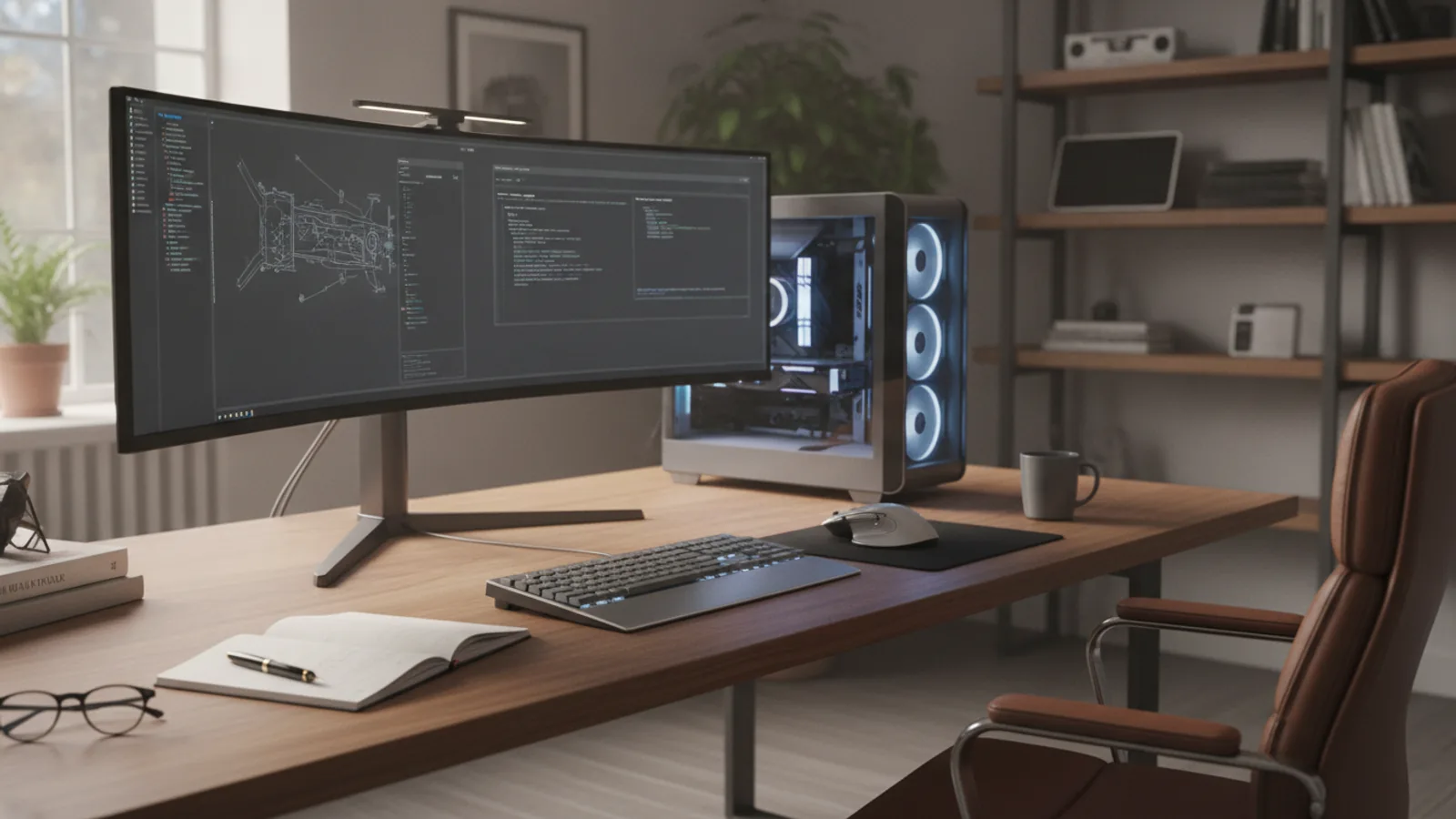
The best computer in the world is let down by a poor monitor, a flimsy keyboard, or an inaccurate mouse. These are your primary points of interaction with the machine, so they are worth investing in.
- Monitor: Your window into the computer. For general use, a 24-inch 1080p (Full HD) monitor is a great starting point. For more screen space, consider a 27-inch 1440p (QHD) model. Gamers should also look at refresh rate (120Hz or higher), while creatives should prioritise colour accuracy.
- Keyboard and Mouse: This comes down to personal preference. Ergonomic designs can reduce strain during long work sessions. Mechanical keyboards are popular with gamers and typists for their tactile feel. A good wireless mouse can help create a cleaner desk setup.
Remember to factor these into your total budget from the beginning to avoid any unwelcome surprises at the checkout.
Quick Reference
| Situation | Recommended Specification | Why |
|---|---|---|
| Light Browsing & Email | Core i3/Ryzen 3, 8GB RAM, 256GB+ SSD, Integrated Graphics | Cost-effective and perfectly capable for basic daily tasks. |
| Home Office & Multitasking | Core i5/Ryzen 5, 16GB RAM, 512GB+ SSD, Integrated Graphics | Smooth performance across multiple apps, documents, and video calls. |
| Serious Gaming (1080p/1440p) | Core i5/Ryzen 5 or higher, 16GB+ RAM, 1TB+ SSD, Dedicated GPU | Provides high frame rates and detail for a fluid gaming experience. |
| Professional Video/Photo Editing | Core i7/Ryzen 7 or higher, 32GB+ RAM, 1TB+ NVMe SSD, Powerful GPU | Crucial for handling large files, fast rendering, and smooth workflows. |
Common Problems When Choosing a Desktop Computer
Navigating the market can be tricky. Here are a few common pitfalls to be aware of:
- Bottlenecking: This happens when one component is significantly weaker than the others, holding back the overall system performance. For example, pairing a top-of-the-line processor with very slow or insufficient RAM. The key is to buy a system with balanced components that are well-suited to each other.
- Overspending on a Brand Name: While reputable brands offer reliability and good support, don't assume the most expensive option is always the best. Focus on the internal components and reviews rather than just the logo on the case.
- Ignoring the Power Supply and Cooling: These aren't headline features, but a low-quality Power Supply Unit (PSU) can be unreliable, and poor cooling can cause the computer to run slower under load. Reputable pre-built systems from major brands generally use adequate components here.
- Forgetting About Warranty and Support: Check the length of the warranty (one year is standard, some offer more) and the reputation of the manufacturer's customer support. When something goes wrong, good support is invaluable.
Advanced Tips for Your Purchase
Ready to take your decision-making to the next level? Keep these points in mind.
- Consider Your Future Upgrade Path: If you think you might want to add more RAM, storage, or a better graphics card in a few years, a Mid-tower PC is your best choice. Check that the motherboard has spare RAM slots and that the case has empty drive bays.
- The Pre-Built vs. Custom Debate: While this guide focuses on choosing a pre-built PC for convenience and a single warranty, building your own is an option for enthusiasts. It offers complete control over every component but requires research, time, and confidence in assembling it yourself.
- A Better Monitor Is a Better Experience: Your monitor can outlast your PC tower. Investing in a high-quality display with good colours, brightness, and resolution will elevate every single thing you do on the computer. Don't treat it as an afterthought.
- Noise Levels Matter: Some high-performance PCs, especially for gaming, can be loud due to their cooling fans. If your computer will be in a quiet office or bedroom, look for reviews that mention the system's noise levels under load.
Desktop Computers Computer FAQ
How much RAM do I really need?
Is an Intel or AMD processor better?
Do I need a 4K monitor?
What's the main difference between a gaming PC and a regular PC?
How long should a good desktop computer last?
Final Checklist for Choosing Your Desktop Computer
Use this final checklist to run through the key points before making your purchase. This ensures you haven't missed a crucial step in finding the perfect machine for your home.
- Main Purpose Defined: You know exactly what you'll be using the computer for (e.g., home office, gaming, creative work).
- Total Budget Set: Your budget includes the PC tower and all necessary peripherals like a monitor and keyboard.
- Space Measured: You've confirmed the chosen form factor (Tower, SFF, AIO) fits your desk space.
- Core Components Balanced: The CPU, RAM, and storage are a good match for each other and for your intended use case. You've opted for at least 16GB of RAM and an SSD.
- Graphics Needs Assessed: You've decided between integrated graphics (for general use) or a dedicated GPU (for gaming/creative tasks).
- Connectivity Checked: The computer has enough of the right ports (USB-A, USB-C, HDMI/DisplayPort) for your devices.
- Peripherals Considered: You have a plan and budget for a quality monitor, keyboard, and mouse that suit your needs.
- Warranty and Support Reviewed: You are comfortable with the manufacturer's warranty period and support reputation.