How To Change The Language On Samsung Tablet
A practical step-by-step guide to how to change the language on samsung tablet, including preparation, instructions, common issues, tips, and next steps.
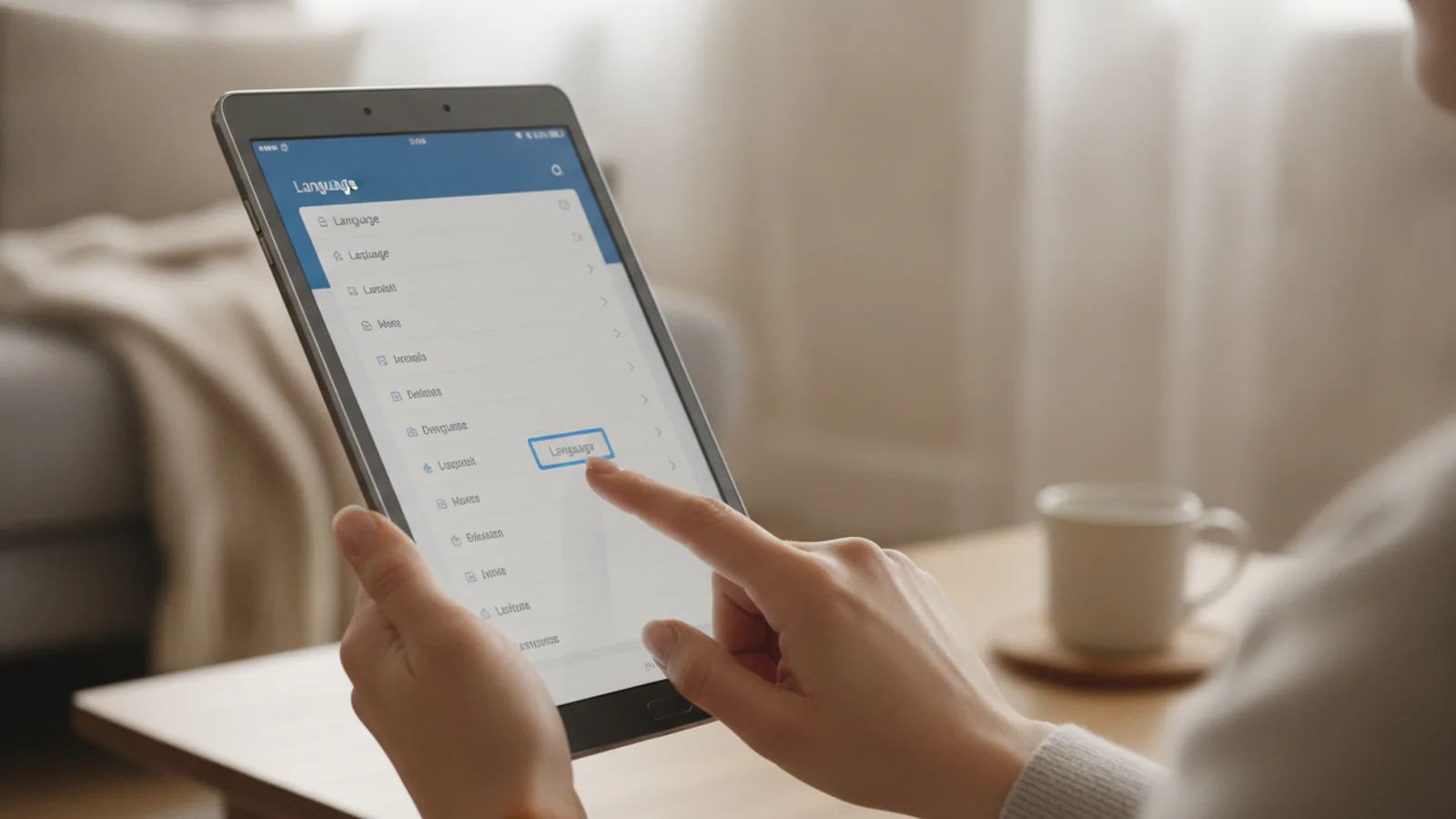
How To Change The Language On Samsung Tablet
This guide explains how to approach how to change the language on samsung tablet, including the preparation, practical steps, common mistakes, and final checks that help you finish with confidence.
Before You Start
Step-by-Step Instructions
Quick Reference
Common Problems When You Change The Language On Samsung Tablet
Even with clear instructions, you might encounter a few minor hurdles when adjusting your Samsung tablet's language. Understanding these common issues and their solutions can save you time and frustration, ensuring a smooth transition to your preferred linguistic interface.
Partial Language Change
Sometimes, after changing the language, you might notice that some parts of the interface, or certain applications, still display text in the old language. This can be particularly confusing and disrupts the seamless experience you're aiming for. This usually happens because applications might have their own cached language settings or haven't fully registered the system-wide change.
Solution: The most effective fix is to restart the specific app that isn't fully translated. If the issue persists across multiple apps, or even in system areas, a full restart of your Samsung tablet is recommended. Power off your device completely and then turn it back on. This forces all system processes and applications to reload with the new language settings, typically resolving any partial translations.
Difficulty Finding Settings in Unfamiliar Language
If your tablet is currently set to a language you don't understand, navigating to the correct settings can feel like a daunting task. The text labels will be unfamiliar, making it hard to follow standard instructions.
Solution: Rely on visual cues and icon recognition. The 'Settings' icon (a gear) is universal. Once in Settings, look for an icon that visually suggests 'management' or 'system' (often with some sort of circular arrow or layered squares) for 'General management'. Within that, 'Language and input' often has an 'A' with a keyboard icon. If all else fails, use another device (like your phone or a computer) to search for visual guides for "Samsung tablet settings icons" or use a translation app to translate the screen in real-time by pointing your camera at it.
Desired Language Not Available
You might go to 'Add language' but find that your specific dialect or a less common language is not immediately present in the list.
Solution: First, ensure your tablet has a stable internet connection, ideally Wi-Fi. Many language packs, especially for specific regional variations, are not pre-installed and need to be downloaded. If connected and still not seeing it, check for any pending software updates for your tablet in Settings > Software update. Sometimes, new language support is added with system updates. If it's a very niche language, it might not be supported at all, though this is rare for major languages and their common dialects.
Keyboard Language Doesn't Change
It's a common misconception that changing the tablet's display language will automatically change your keyboard's input language. While often linked, they are separate settings.
Solution: You need to adjust your keyboard language separately. Go to Settings > General management > Language and input > On-screen keyboard. From here, select your primary keyboard (e.g., Samsung Keyboard, Gboard) and then navigate to its 'Languages and types' settings. Here, you can add or remove keyboard languages and switch between them easily while typing, typically using a globe icon on the keyboard itself.
By keeping these solutions in mind, you can confidently change your Samsung tablet's language and resolve any minor hitches that might arise, ensuring a consistently premium user experience tailored to your linguistic preferences.
Advanced Tips for How To Change The Language On Samsung Tablet
Beyond the basic steps of adjusting your Samsung tablet's language, there are several advanced insights and practices that can further refine your experience. These tips are designed to give you greater control, efficiency, and a deeper understanding of how language settings interact with your device.
Utilise the Settings Search Function
If you find yourself frequently adjusting settings or are navigating an unfamiliar interface, the search bar within the 'Settings' app is an invaluable tool. Instead of scrolling through endless menus, you can simply type in keywords like "language," "management," or "input." The search function will quickly filter and display the relevant options, making it significantly faster to reach the desired setting, regardless of the current display language (provided you can type the keyword).
This is particularly useful if you're helping someone else with their tablet or if Samsung's menu structure has slightly changed after a software update. It's a prime example of leveraging smart features for a more efficient premium user experience.
Understand Regional Language Variants
When selecting a language, you'll often encounter several regional variants (e.g., English (United Kingdom), English (United States), English (Australia)). While they share the same core language, these variants influence more than just spelling. They can affect currency symbols, date formats, time zone suggestions, and even the nuances of voice input recognition.
Choosing the correct regional variant ensures that your tablet truly reflects your local linguistic and cultural context. This attention to detail is key for a truly personalised and intuitive device experience, avoiding minor but noticeable discrepancies.
Impact on Voice Input and Voice Assistant
Changing your tablet's primary language can also affect your voice input settings and the behaviour of your voice assistant (like Bixby or Google Assistant). If you primarily use voice commands, ensure that your voice input language is also aligned with your preferred primary language. This usually needs to be configured in the 'Language and input' section, often under 'On-screen keyboard' or 'Speech' settings.
For Bixby or Google Assistant, you might need to go into their respective app settings to confirm or change their operational language. Aligning these settings ensures seamless interaction and accurate interpretation of your commands, contributing to a more advanced and responsive smart device experience.
Regularly Check for Software Updates
Samsung frequently releases software updates that not only enhance security and performance but can also introduce new features, improve language support, or refine existing language packs. Keeping your tablet's operating system up to date ensures you have access to the latest linguistic capabilities and the most polished interface translations. Periodically check for updates in Settings > Software update > Download and install to benefit from these improvements.
These advanced tips go beyond the initial setup, providing a deeper layer of customisation and efficiency for managing the language on your Samsung tablet. They empower you to fine-tune your device to truly match your lifestyle and communication preferences.
How To Change The Language On Samsung Tablet FAQ
Q: Will changing the language delete my data or apps?
A: No, changing the language on your Samsung tablet will not delete any of your personal data, installed applications, or existing settings. It only alters the display language of the operating system and most compatible applications. All your files, photos, contacts, and app data will remain completely intact. Think of it as simply changing the label on things, not altering the things themselves.
Q: Do all apps support the new language?
A: Most modern applications developed for Android will automatically adopt the system's primary language setting, provided they have translation files for that language. However, some older, less-maintained, or niche applications might not support all languages and may default to English or their original language. If an app doesn't switch, check its individual settings for a language option, or contact the app developer for clarification.
Q: How do I switch between multiple languages quickly?
A: If you frequently switch between two or three languages, you don't need to re-add them each time. Once you've added multiple languages to your tablet (Settings > General management > Language and input > Language), they will appear in a ranked list. To switch, simply tap and hold the 'handle' (usually three lines) next to the language you want to make primary, and drag it to the top of the list. The change will take effect almost instantly.
Q: My tablet is stuck in a language I don't understand, what should I do?
A: If you accidentally selected an unknown language and can't read the menu options, follow the visual guide. Look for the gear icon (Settings). Once in Settings, find the 'General management' section (often identifiable by its position or a specific icon). Then, locate 'Language and input' (often looks like an 'A' with a keyboard). Finally, find the first option, which is 'Language', and tap 'Add language' (usually a plus sign or 'Add' button at the bottom). Add a language you understand, then drag it to the top. If completely lost, consider searching for visual step-by-step guides online or asking a friend for assistance.
Final Checklist for How To Change The Language On Samsung Tablet
Before concluding your language adjustment, run through this quick checklist to ensure everything is set up perfectly and your tablet provides the premium, intuitive experience you expect.
- Primary Language Set: Verify that your desired language is listed at the very top of the 'Language' list in settings.
- Interface Fully Translated: Briefly navigate through your tablet's menus and open a few common apps to confirm that the language has been applied consistently. Restarting the tablet can resolve minor inconsistencies.
- Keyboard Language Checked: Confirm your keyboard's input language is also set to your preference, separate from the system display language.
- Voice Input / Assistant Configured: If you use voice commands, ensure your voice input language and assistant language (e.g., Bixby, Google Assistant) are correctly aligned.
- Unused Languages Removed (Optional): Tidy up your language list by removing any languages you no longer need, making the settings cleaner.
- Test Essential Functions: Briefly check functions like web browsing, typing messages, and opening calendar entries to ensure all elements display correctly in the new language.
With these checks complete, your Samsung tablet is now perfectly customised to your preferred language, ready to offer a seamless and personalised digital experience. Enjoy navigating your device with clarity and ease.