How To Hook Up Two Monitors To A Laptop
A practical step-by-step guide to how to hook up two monitors to a laptop, including preparation, instructions, common issues, tips, and next steps.
How To Hook Up Two Monitors To A Laptop
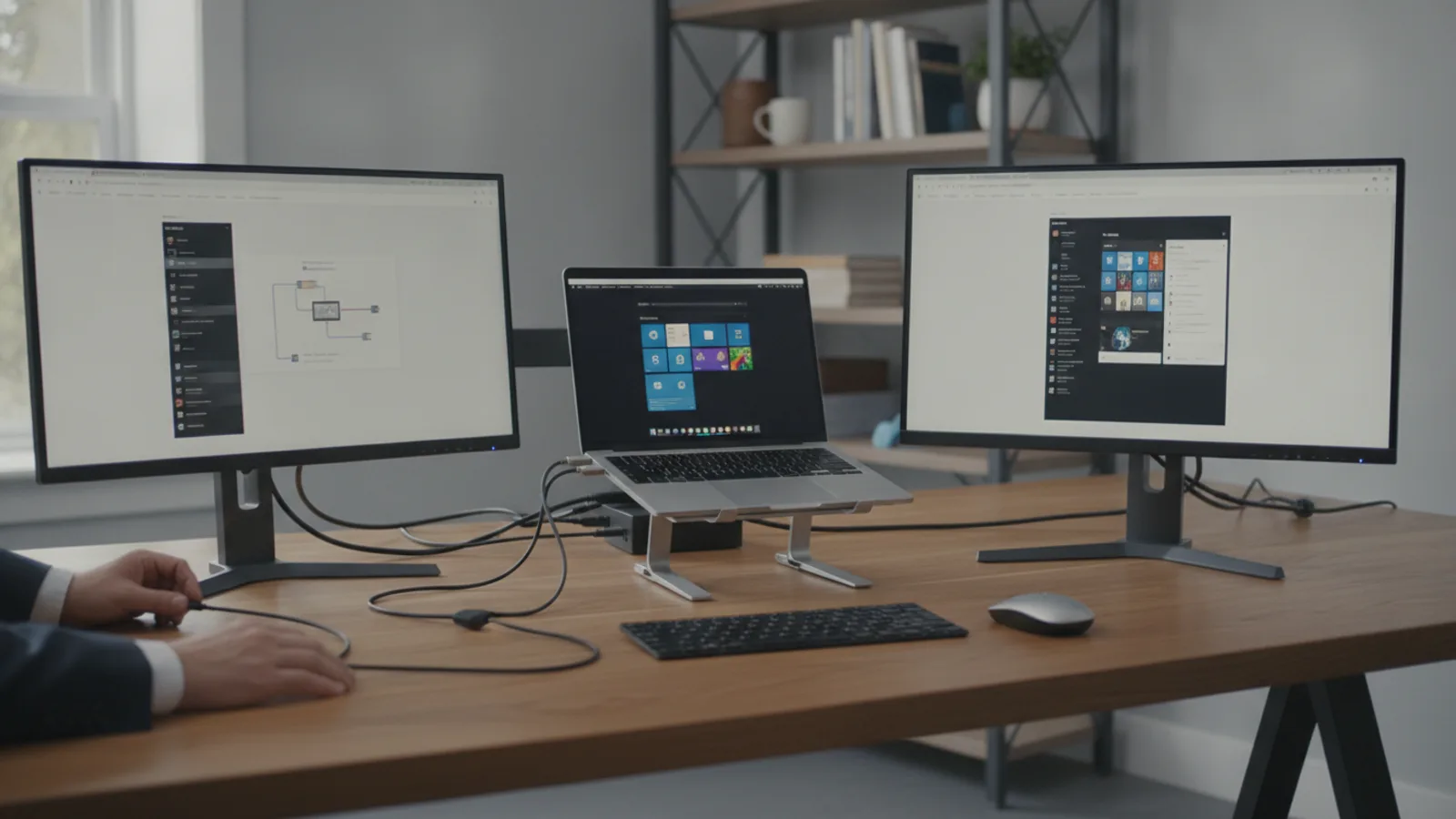
This guide explains how to approach how to hook up two monitors to a laptop, including the preparation, practical steps, common mistakes, and final checks that help you finish with confidence.
Before You Start
Before you begin connecting your new display setup, it's essential to gather your tools and perform a few preliminary checks to ensure a smooth process. This preparation will save you time and potential frustration.
Step-by-Step Instructions
Quick Reference
Common Problems When You Hook Up Two Monitors To A Laptop
Even with careful preparation, you might encounter a few hurdles when setting up your dual-monitor workstation. Here are some common issues and their practical solutions:
Only One Monitor Is Detected or Working
Monitor Not Detected At All
Incorrect Resolution or Blurry Display
Mouse Cursor Gets Stuck Between Screens
Laptop Gets Hotter or Battery Drains Faster
Advanced Tips for How To Hook Up Two Monitors To A Laptop
Once you've mastered the basics, consider these advanced tips to optimise your dual-monitor setup for even greater productivity and a more polished experience.
Invest in a Quality Docking Station (Thunderbolt/USB-C)
For a truly premium and clutter-free experience, a high-quality docking station is often worthwhile, especially if your laptop has a Thunderbolt 3/4 or a full-featured USB-C port.
Consider DisplayPort Daisy Chaining (MST)
If your monitors and laptop both support DisplayPort (DP) 1.2 or higher and your monitors have both a DP input and DP output, you can often "daisy chain" them.
Optimise for Ergonomics
Long hours at a multi-monitor setup can strain your neck and eyes if not set up correctly.
Customise Your Software Workflow
Leverage software tools to make the most of your expanded screen real estate.
Maintain Graphics Drivers
Regularly updating your laptop's graphics drivers is essential for optimal performance, stability, and compatibility with new features or monitor types.
How To Hook Up Two Monitors To A Laptop FAQ
Q: Can all laptops support two external monitors?
A: No. While most modern laptops with sufficient processing power and video output ports can support two external monitors, some older or entry-level models might only support one, or have limited resolution capabilities. Always check your laptop's specifications or manufacturer's website.
Q: Do I need a special graphics card to run two monitors?
A: You need a graphics card (integrated or dedicated) that has the necessary video outputs and processing power. Most modern laptops come with integrated graphics (e.g., Intel Iris Xe, AMD Radeon Graphics) that are perfectly capable of handling two external monitors for general productivity. For demanding tasks like high-resolution gaming or video editing across multiple screens, a laptop with a dedicated graphics card (NVIDIA GeForce, AMD Radeon) will offer better performance.
Q: What's the best type of cable to use for monitors?
A: For most users, HDMI and DisplayPort are the most common and effective. DisplayPort often offers slightly better performance for higher resolutions and refresh rates, and supports daisy-chaining (MST). USB-C (especially Thunderbolt) is incredibly versatile, as it can carry video, data, and power over a single cable, often requiring a compatible dock or adapter.
Q: Can I use monitors of different sizes and resolutions?
A: Yes, absolutely. You can mix and match monitor sizes and resolutions. In your display settings, you'll be able to set individual resolutions and scaling for each screen. Your mouse will still move smoothly between them, though visual scaling might feel slightly different if the resolutions are vastly different.
Q: Will connecting two monitors slow down my laptop?
A: Running multiple external displays does increase the workload on your laptop's graphics processor and system memory. For basic tasks (browsing, documents), the impact is usually minimal. For more intensive applications (gaming, video editing), you might notice a slight dip in performance compared to using just the laptop screen, but for most professional work, the benefit of extra screen space far outweighs this.
Q: Can I close my laptop lid when using external monitors?
A: Yes, this is known as "clamshell mode." For Windows, go to "Power & sleep settings" > "Additional power settings" > "Choose what closing the lid does" and set "When I close the lid" to "Do nothing" when on AC power. For macOS, ensure your MacBook is connected to power, an external keyboard, and an external mouse before closing the lid.
Q: My mouse cursor gets stuck between monitors, what's wrong?
A: This usually means the virtual arrangement of your displays in your operating system's settings doesn't match the physical setup on your desk. Go into your display settings and drag the monitor icons to reflect their actual positions, so your mouse can flow seamlessly from one to the other.
Final Checklist for How To Hook Up Two Monitors To A Laptop
Before you dive into your new, expanded workspace, run through this quick checklist to ensure everything is perfect and ready for prime use.
With these steps completed, you're now ready to enjoy the enhanced productivity and immersive experience of a dual-monitor setup with your laptop. Congratulations on upgrading your digital workspace!